 ECEn 426
 Networking
 Application Layer
 Transport Layer
 Network Layer
 Link Layer
Table of Contents
Development Environment
You are welcome to use the computers in the Embedded Lab (EB 438) to work on your labs, however, none of the labs require you to sit at one of these computers. The labs will be tested and graded on Linux, so you need to make sure that it works in that environment. However, I completed all of the labs on macOS and did not see major differences. If you would like to use pure Windows to develop your labs, don’t. Sorry, the socket programming is different on Windows so it would require a lot of effort to have it support Windows and Linux. I can’t vouch for the Linux Subsystem on Windows, but you are welcome to try. Students in the past have had success using it. Just know that all grading will be done using pure Linux. If you don’t have access to Linux on your machine, you can SSH into a Embedded Lab computer and develop from there, or install a VM on your machine.
To SSH into an Embedded Lab computer, use the following host name: embed-<N>.ee.byu.edu, replacing
Visual Studio Code
I highly recommend you use VS Code. It’s a good enough editor and has a lot of powerful extensions. Specifically, using the auto-formatting on save will save you a lot of trouble (and points) when you submit your code. Set up your VS Code C/C++ extension with the following Clang format specification:
{ BasedOnStyle: LLVM, UseTab: Never, IndentWidth: 4, TabWidth: 4, ColumnLimit: 100 }
(you can also change the ColumnLimit to 80, the default.)
Here is an example of my configuration:
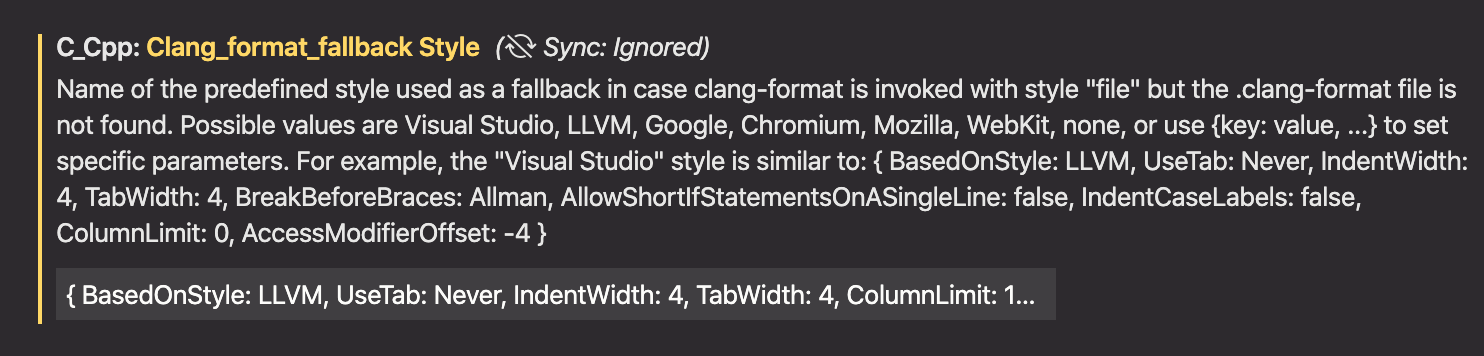
I even have it format my code on save.

If you are working on the labs remotely (SSHing into a computer), I strongly recommend you figure out how to use VS Code’s remote development. It is a very powerful way of developing on a remote machine while making it look like everything is local. Spending some time now will save you a lot of time later… I promise.
Terminal
A theme in this class will be setting up your environment so that it matches your preferences, making your life easier. This is true with your terminal app—set it up so that it brings you joy (as much as a terminal app can) and works with your habits.
My highly opinionated set up involves using zsh, Oh My Zsh, and Powerlevel10k. If you would like read more about my setup, you can go here.
Git Repositories
For the labs, we will be using GitHub Classroom. If you are unfamiliar with Git, now is the time to start learning. VSCode has some Git integrations which will make this easier.
For each lab, you will be given a link to start the lab. This will automatically create an empty GitHub repo for you for that lab. This is the only way to start and submit the lab! In order for your code to be graded, you must push your code to your repo.
To start the lab, you can import the boilerplate code that I will give you for each lab through the “Import code” button:
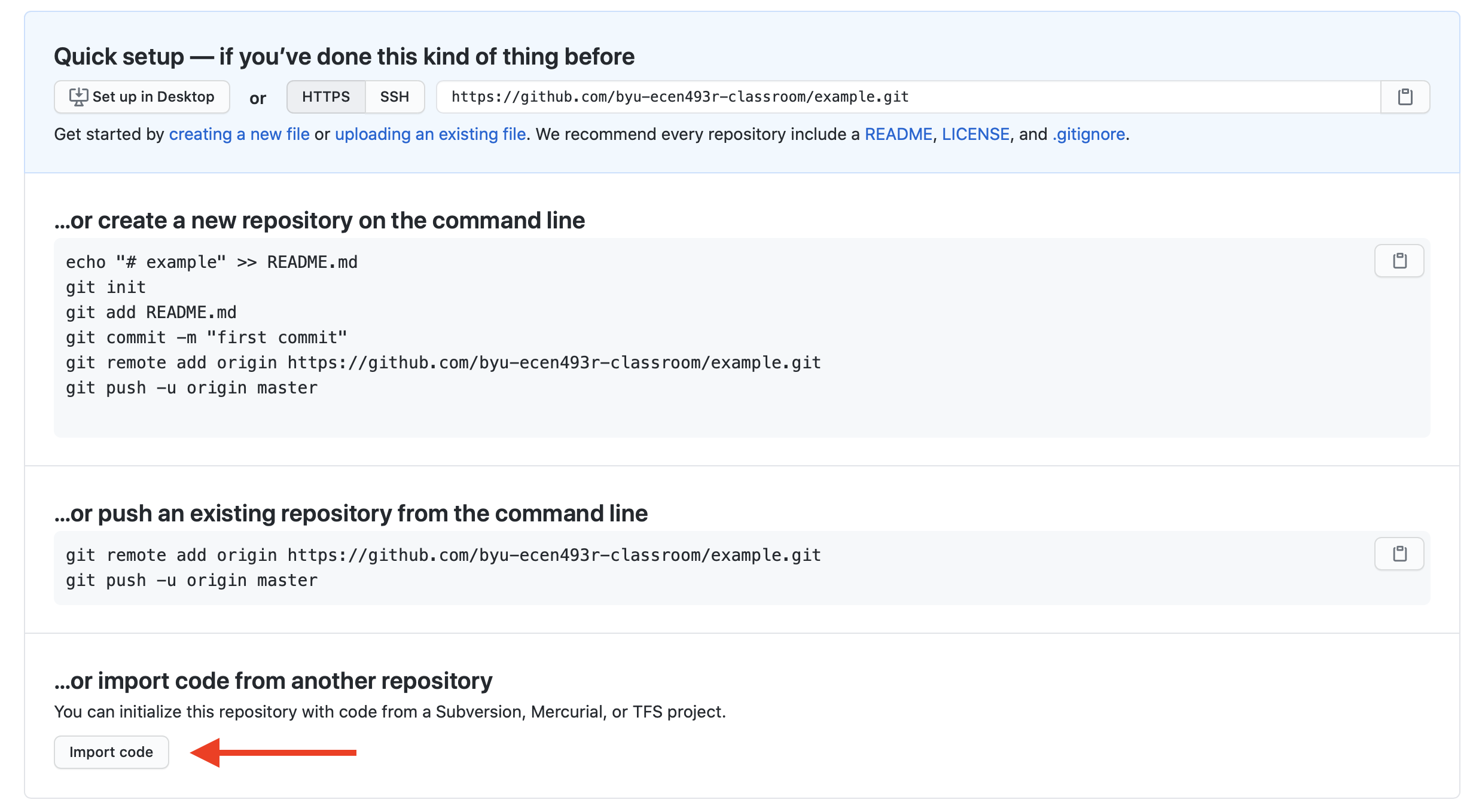
Each lab page will have a link to the repo you should uses as your starting point.
If for some reason, I need to fix a problem with the starter code, you will need a way of pulling those changes down onto your computer. The easiest approach is to create another remote for your git repo. By default, you will have one remote, origin, which will point to your GitHub repo. Add another one using the following command:
git remote add template [URL OF LAB TEMPLATE REPO]
If you ever need to pull down changes I made (I will let you know when this is the case), you can do the following:
git fetch template
git merge template/master
Lab Submission
To submit your lab, you must create a tag named final on your git repository. The following command will tag your most recent commit and push that tag to GitHub:
git tag final
git push origin final
This tag will point to your most recent commit of whichever branch you are currently located on (so make sure all of your changes are committed before running this). If you are not confident you did this correctly, you may want to go to a new directory (not in your repo) and run git clone --branch final <repo_url> to clone your tag and verify that it builds and runs correctly.
If, after you create this tag, you want to change it (i.e., re-submit your code), you can run the following commands and include the –force option to overwrite the tag:
git tag --force final
git push --force origin final
If you don’t use the correct tag name (final), the lab will not be count as submitted.